

Contents
Key takeaways
- Zap controls the TV directly over Wi-Fi, with no account or server.
- One driver per TV family (Samsung, LG, Android TV, Roku, Philips, Panasonic, Fire TV), written in Swift and Kotlin.
- Samsung pairing was measured on a real TV: 30-second timeout, automatic retry.
- The TV is found again by its MAC address when the router changes its address, with no new authorisation.
- Widgets, lock screen and Control Center respond right away thanks to probed and doubled connections.
Zap turns an iPhone or Android phone into a TV remote. No account, no server: every press goes straight from the phone to the TV over the home Wi-Fi. Behind a simple screen sits one of the most technical projects in the portfolio: poorly documented network protocols, a fussy pairing process and widgets that must respond even on the lock screen.
What Zap does, and who it is for
Zap is for anyone who keeps losing the remote between the sofa cushions. The phone, on the other hand, is always within reach: it might as well turn up the volume, switch input or open Netflix.
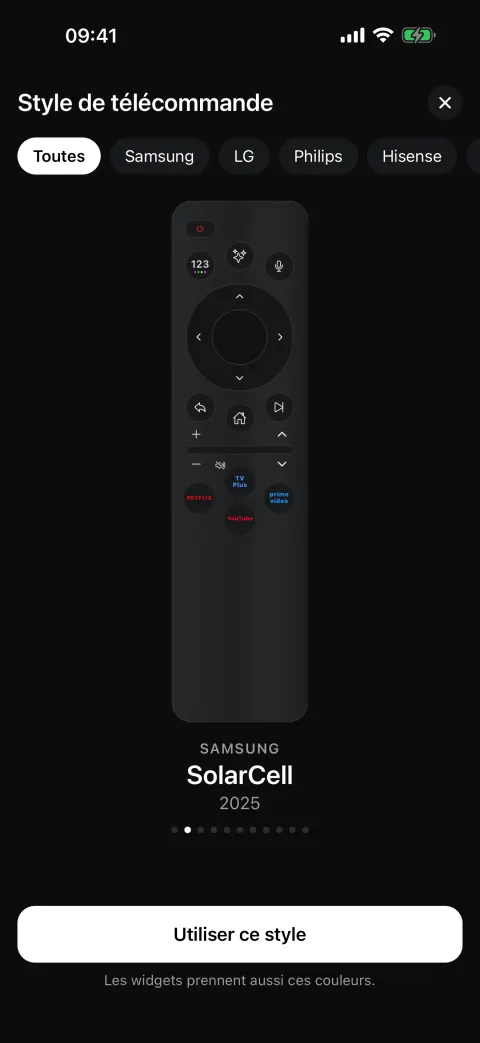
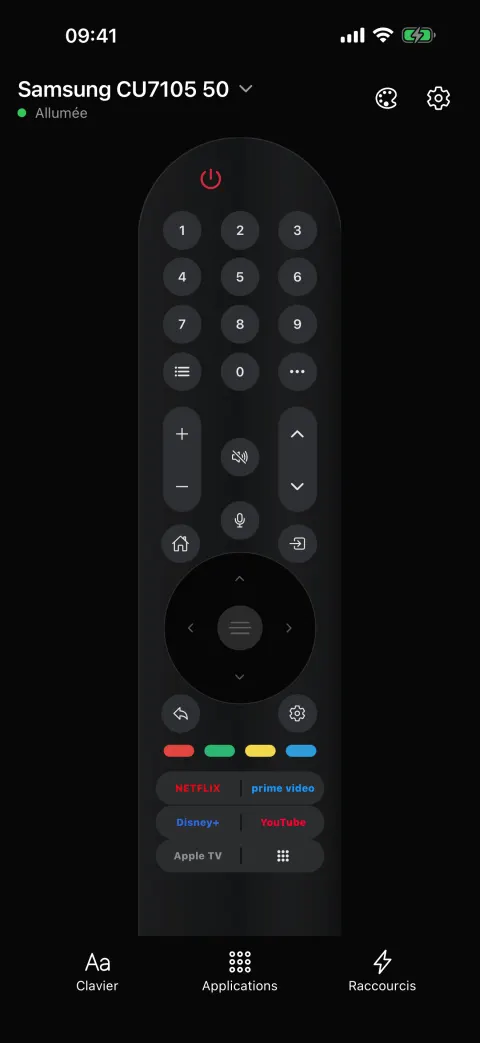
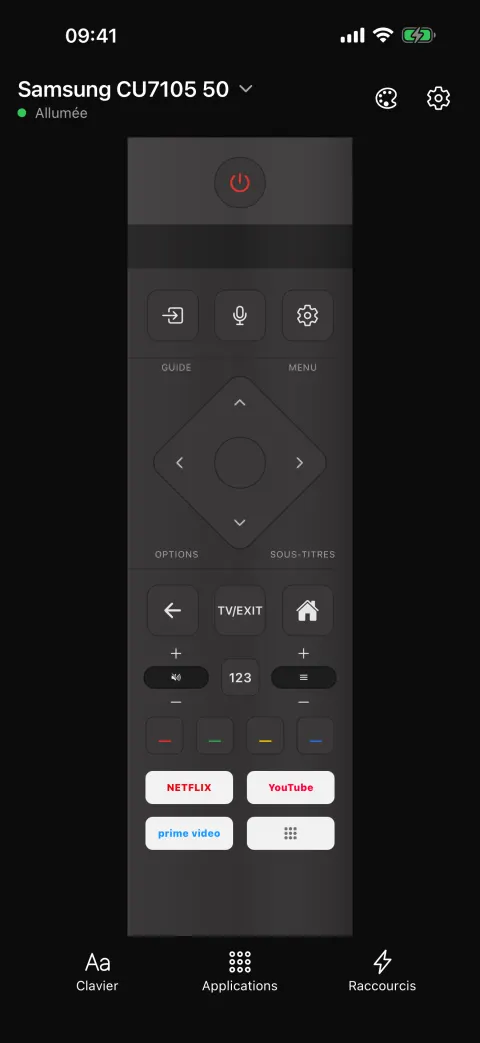
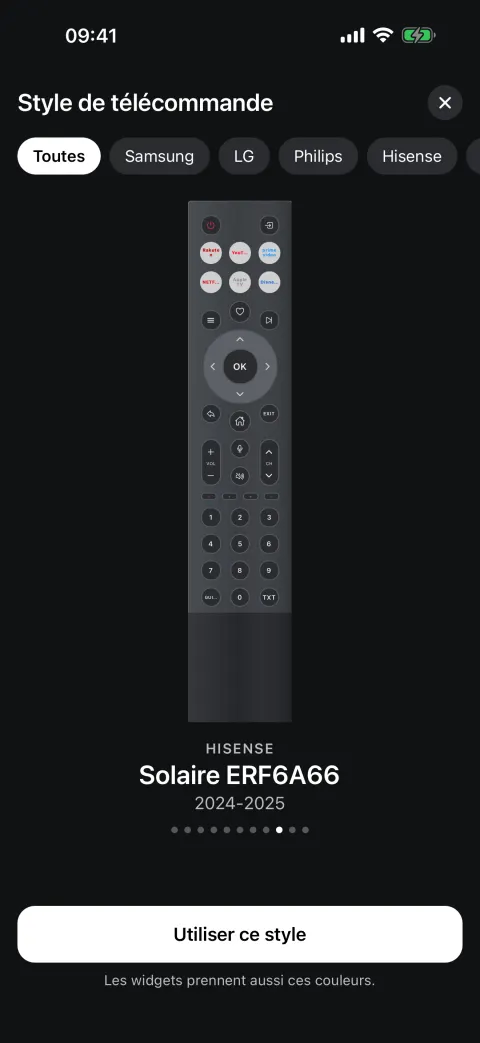
The app was first designed for Samsung smart TVs (Tizen). It offers eleven remote styles: a Standard style and ten real remotes from Samsung, LG, Philips, Hisense, Sony and TCL, redrawn from their official front photos (shape, colours, position of every button). The app and the widgets take on the colours of the chosen style.
The user journey takes four steps:
- Search: Zap looks for TVs on the Wi-Fi. The TV’s address can also be typed in by hand.
- Authorisation: on the first connection, the TV asks to allow the phone, or shows a code to copy, depending on the brand.
- Remote: the screen shows the chosen style, the TV’s name and its state (on, standby or off).
- Every day: widgets on the home screen, lock screen and Control Center mean you don’t even need to open the app.
Features
- Eleven remote styles, with a customisation screen.
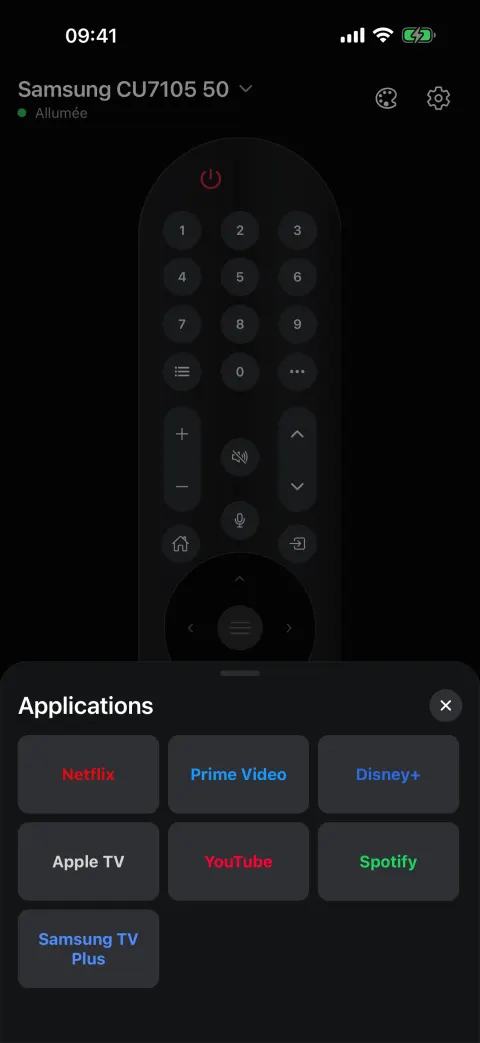
- TV apps: Zap reads the list of apps installed on a Samsung TV and opens them in one tap (Netflix, YouTube, Prime Video, Disney+…).
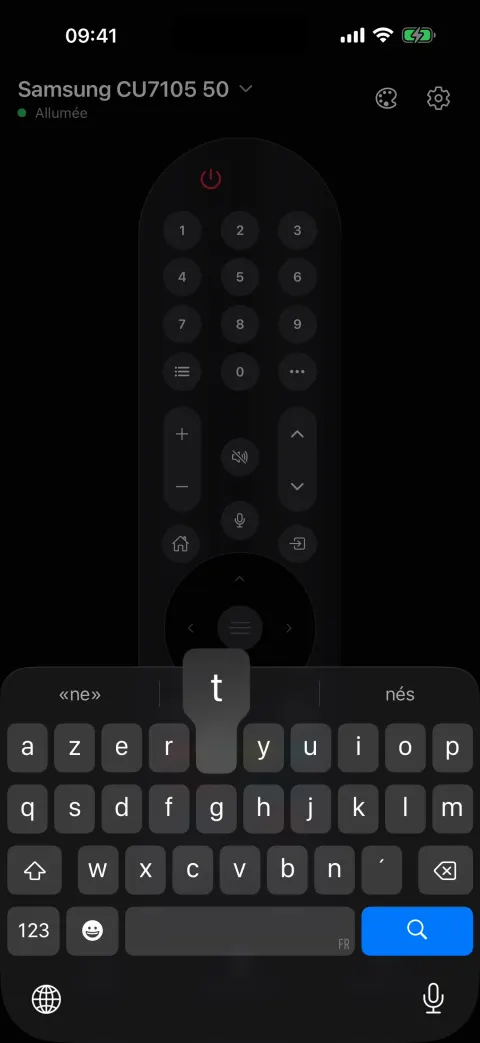
- Keyboard: the phone keyboard types into the TV’s text fields (search, browser, logins).
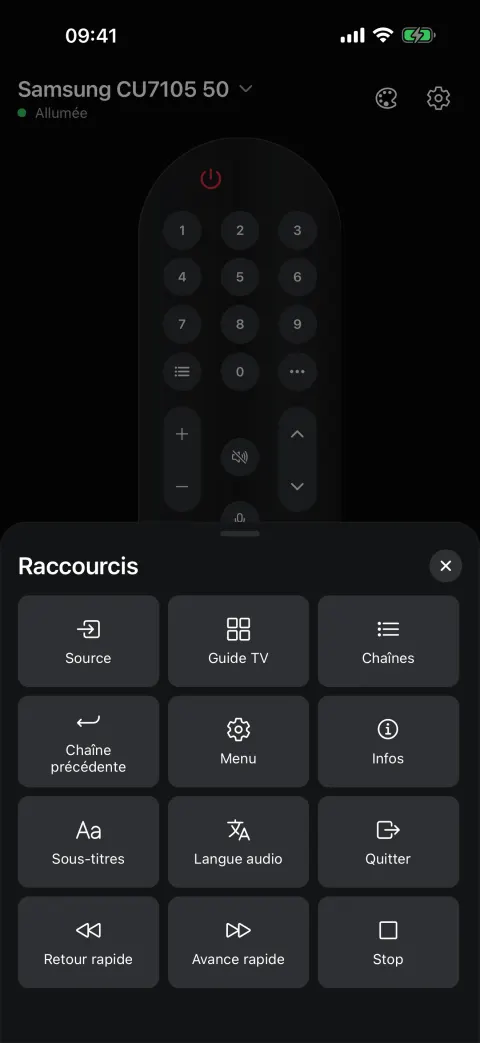
- Shortcuts: input source, TV guide, channel list, previous channel, subtitles, audio language, fast forward and rewind.
- Several TVs: each TV in the home keeps its own authorisation key, and you switch between them from the top of the screen.
- Live state: on, standby or off, with wake-up over the network.
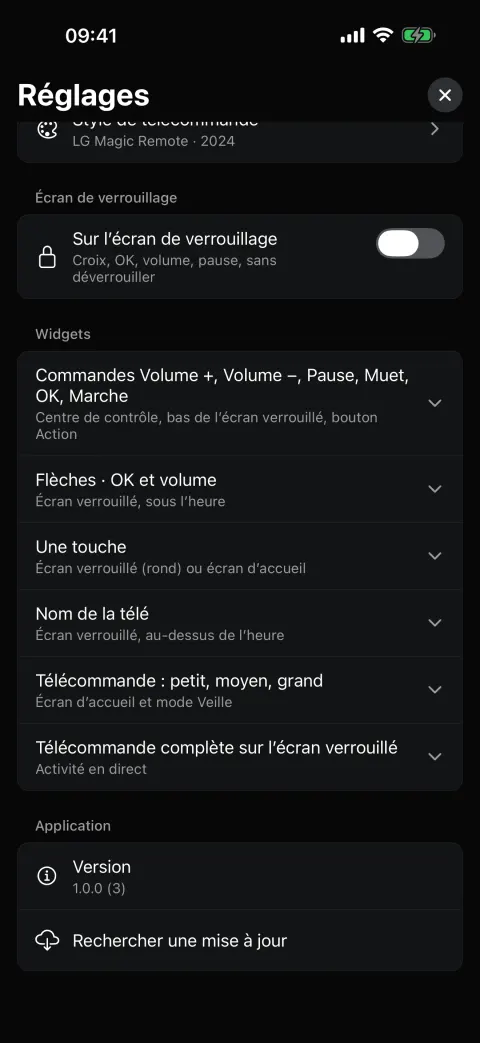
- On iPhone: home screen widgets in several sizes, a configurable “single key” widget, arrows and volume on the lock screen, Control Center controls and a Live Activity.
- On Android: a remote in a persistent notification visible on the lock screen, home screen widgets and Quick Settings tiles.
- Privacy: no account, no ads, no personal data collected.
The heart of the problem: every brand speaks its own language
There is no common protocol for controlling a TV. Each manufacturer has its own, often barely documented or not at all. Zap started with Samsung, then the code was organised around a shared connection and one driver per TV family, written twice: in Swift for the iPhone and its widgets, in Kotlin for Android.
- Samsung (Tizen): an encrypted WebSocket connection; once approved on the TV, it hands over a key to present on every later connection.
- LG (webOS): “SSAP” WebSocket on port 3000, or encrypted 3001 on recent models, plus a second “pointer” connection for the arrows.
- Android TV and Google TV: the “Android TV Remote v2” protocol, Protobuf messages over TLS, pairing with a six-character code shown on the TV.
- Roku: the “ECP” HTTP protocol, with no pairing.
- Philips: JointSPACE API, a four-digit code, then “Digest” authentication.
- Panasonic: SOAP commands, encrypted on recent models after a four-digit code.
- Fire TV: an interface Amazon does not document, over HTTPS, with a four-digit code.
To keep the interface identical everywhere, the app only knows one key vocabulary (Samsung “KEY_…” codes). Each driver translates it for its brand: an Android key code, an LG pointer button, a Roku command. Even text needs care: LG and Roku TVs can only append or delete characters, so Zap deletes only what changed since the last send, then types the rest.
Pairing, measured on a real TV
The first connection is the most delicate moment: if it fails, the user gives up. On a real Samsung TV, the behaviour was measured rather than guessed:
- the “Allow?” prompt expires 30 seconds after the connection opens;
- right after a request that was not accepted, any new connection is refused immediately for a short while;
- while a prompt is on screen, the TV holds other connections back;
- an “Allow” chosen too late is still remembered: the next connection is accepted without a new prompt.
Zap takes all of this into account. If the prompt expires, the app retries once, a second later, before showing a readable message. During pairing (accepting on the TV, copying a code), it waits up to three minutes instead of giving up at the first timeout.
Another security point: the TV presents a self-signed certificate. Zap accepts it only for the address of the saved TV, never in general.
Finding the TV, then finding it again
The search probes every address on the network on a list of ports that signal a TV: 8001 for Samsung, 3000 and 3001 for LG, 6466 and 6467 for Android TV, 8060 for Roku, among others. To be fast, hundreds of connection attempts go out at the same time. Android TVs also announce themselves over Bonjour, which gives their name. Each TV found is then identified by querying its interface: name, model, hardware address, state.
The real trap comes later: the router sometimes gives the TV a new address. Without care, the TV would have to be added again, and it would ask for authorisation again… with the remote you cannot find. When the TV no longer answers at its address, Zap searches the Wi-Fi, recognises it by its MAC address or serial number, and keeps its authorisation key.
To turn on a TV that is off, Zap sends a “Wake-on-LAN” packet built from the TV’s MAC address, provided network power-on is enabled in its settings.
Widgets and lock screen: responding right away
A widget is only useful if it reacts immediately. Yet an iPhone widget runs in a separate process, often asleep, and the connection to the TV may be dead without knowing it. Several mechanisms solve this:
- saved TVs and their keys are shared between the app and the widgets (App Group), and the driver code is the same on both sides;
- a connection that has been idle is probed, with a reply in a few milliseconds, instead of waiting for a send to fail;
- an already authorised Samsung TV answers in about 0.2 seconds; after 3 seconds, Zap opens a second connection without closing the first and keeps the fastest;
- on Android, a foreground service keeps the connection open behind the lock screen notification.
Tech stack
- Interface: React Native and Expo, in TypeScript; remotes are drawn in SVG from the relative position of each button.
- Native module: an Expo module in Swift (iPhone) and Kotlin (Android) for the local network, pairing and each brand’s driver.
- Widgets: WidgetKit, Control Center controls and Live Activity on iPhone; widgets, notification and Quick Settings tiles on Android.
- Updates: EAS Update, to ship fixes without going through the stores again.
What this project shows
Zap was designed and built end to end by Ahmed: drawing of the eleven remotes, iOS and Android app, native network module, widgets and Live Activity, presentation page. The project required stepping out of React Native’s comfort zone: reading poorly documented protocols, writing native Swift and Kotlin, measuring a real device’s behaviour and turning it into reliable rules. These skills apply to any app that has to talk to a device on the local network.
Do you have an app that needs to control a device, work without a server or live in widgets? Get in touch to talk about it. The video and all the screenshots are on Zap’s page.
Frequently asked questions
Does Zap need the internet or an account?
No. Zap talks directly to the TV over the home Wi-Fi. There is no account, and no key press goes through a server.
How does the app communicate with the TV?
Using each manufacturer’s local network protocol, in a native module written in Swift and Kotlin. Once authorised on the TV, the key the TV hands over is kept on the phone.
Can you build an app that controls a device on the local network?
Yes, that is the core of Zap: Wi-Fi discovery, pairing, reliable connection and widgets. Describe the device and its protocol through the contact form.


